Getting Started with CookStache
CookStache is your all-in-one BBQ companion. It helps you track your inventory of rubs, sauces, seasonings, and meats, log your cooks, discover recipes, and get AI-powered suggestions based on what you actually have on hand.
Here is a quick tour of what you will find when you open the app.
Your Home Dashboard
The Home tab is your command center. At the top you will see your stats — how many items are in your stache, how many cooks you have logged, and how many items are on your shopping list. Below that, your most recent stache items appear as quick-access chips so you can jump straight to them.
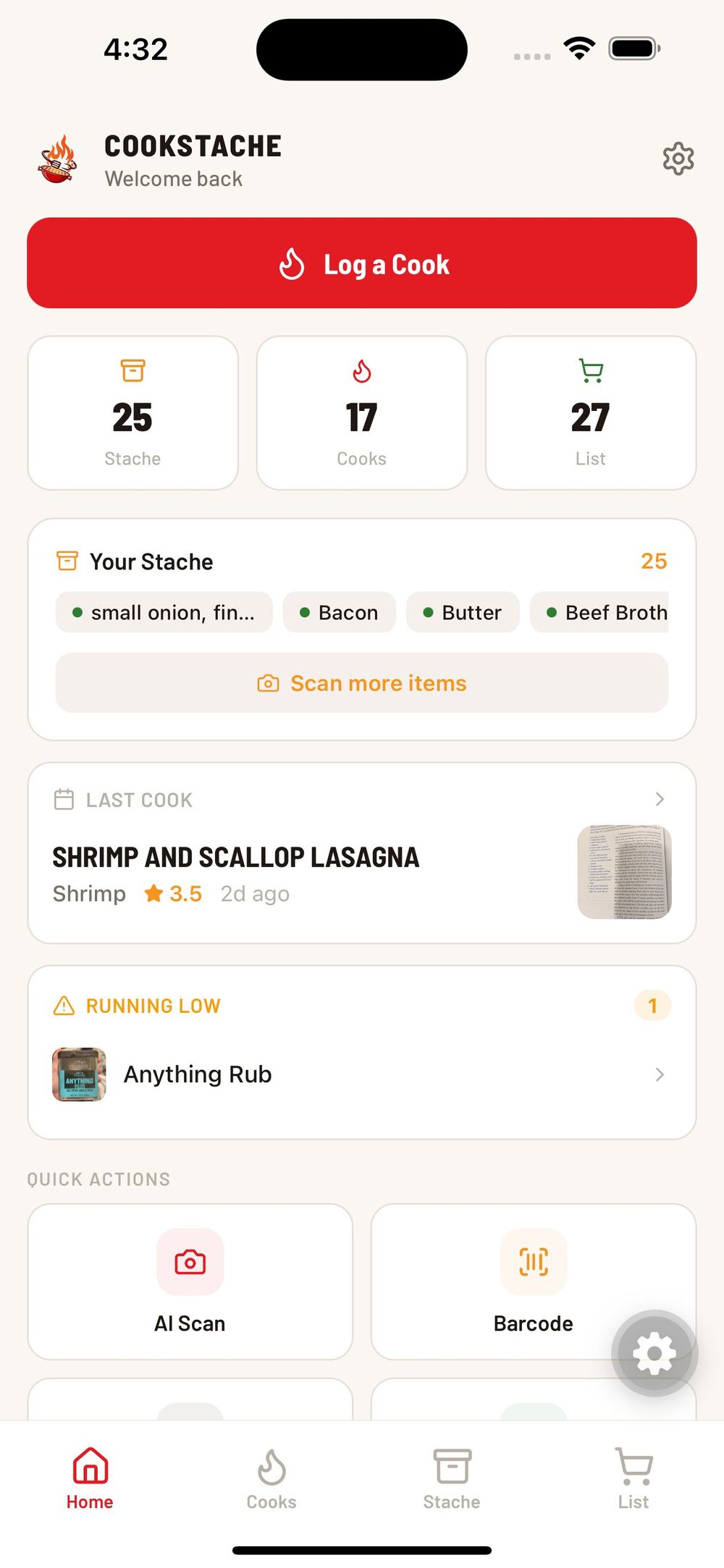
Scroll down to find your Last Cook card, any Running Low alerts for items you need to restock, and Quick Actions that let you jump straight into AI Scan, Barcode scan, Equipment setup, or your Cooks.
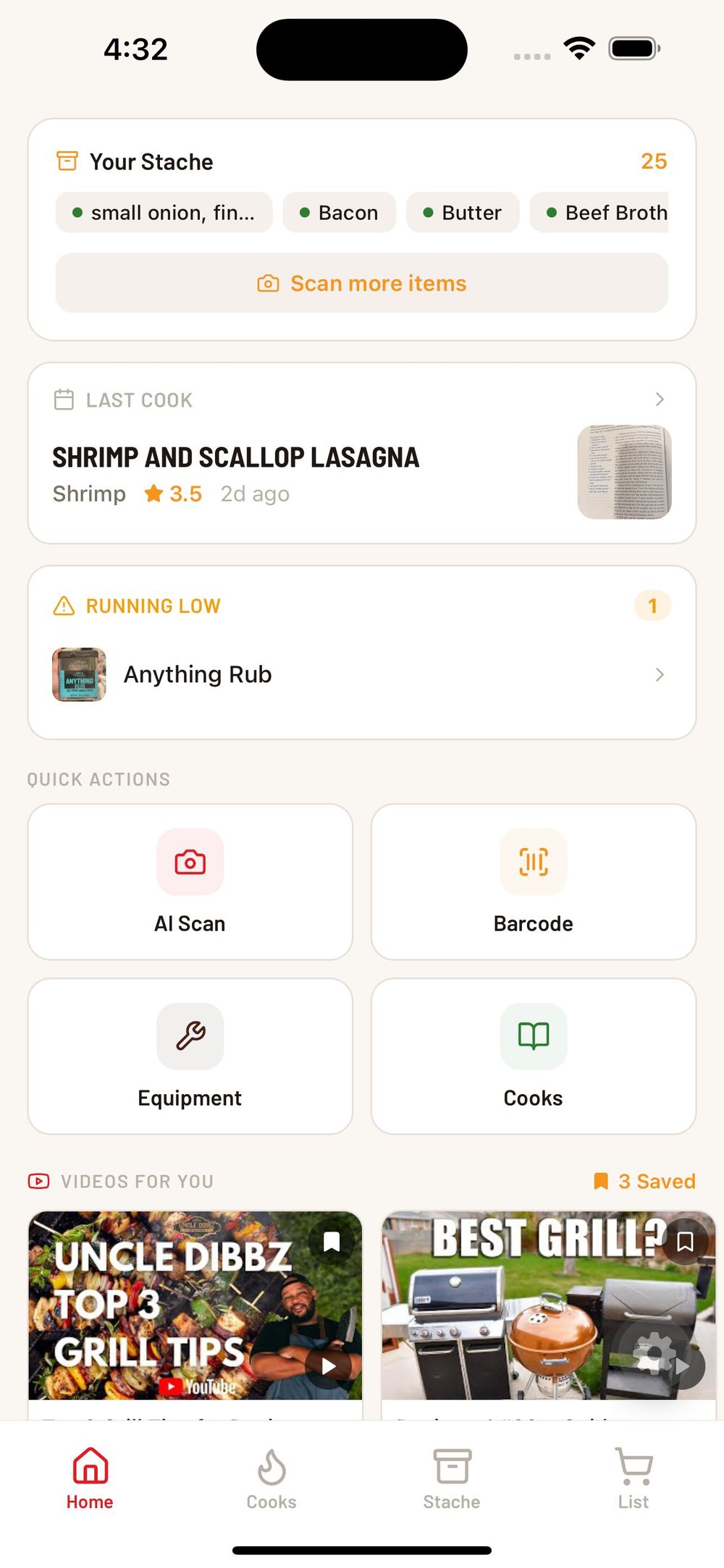
The Videos For You section at the bottom surfaces YouTube content tailored to your equipment and interests, so you can keep learning new techniques without leaving the app.
The Four Tabs
CookStache is organized into four main tabs along the bottom of the screen:
Home — Your dashboard with stats, recent activity, low stock alerts, and quick actions.
Cooks — All your logged cooks and recipes in one place. Tap "+ Add" to log a new cook, import a recipe from a URL, scan a printed recipe, or get AI suggestions based on your stache.
Stache — Your full inventory of BBQ products, organized by category. Search, filter, and tap any item to see its details, related videos, and AI pairing tips.
List — Your shopping list, sorted by category. Check items off at the store and tap "Add to Stache" to move them into your inventory in one step.
Adding Your First Item
The fastest way to get started is to scan something you already have. From the Home screen, tap one of the Quick Action cards or use the Add to Stache chooser to pick how you want to add an item.
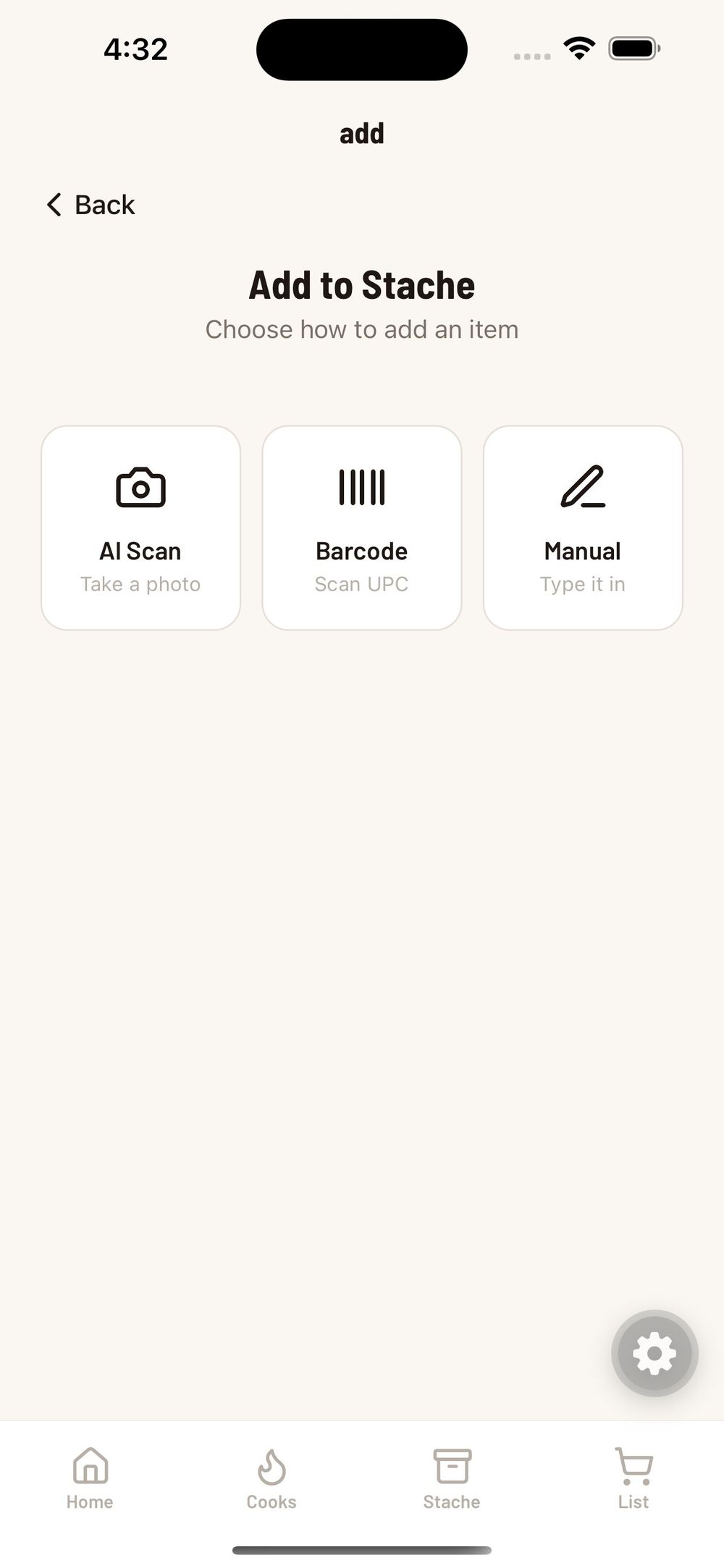
You have three options:
AI Scan — Take a photo of any BBQ product and let the AI identify it automatically. This is the fastest way to build your stache.
Barcode — Scan the UPC barcode on a product for an instant lookup.
Manual — Type in the name and details yourself.
Once your first item is in your stache, everything else in the app starts to light up — your dashboard populates, AI suggestions become available, and your shopping list can track what you need to restock.
Was this helpful?
Still need help?
Email us at hello@cookstache.com