Adding Items to Your Stache
There are three ways to add items to your stache. Each one gets you to the same place — a confirmed item in your inventory — so use whichever method is fastest for the situation.
AI Scan
This is the quickest way to add items. Tap AI Scan from the Add to Stache screen or any Quick Action card on Home. Point your camera at the product label and take a photo. You do not need to line up a barcode — just get the label in the frame.
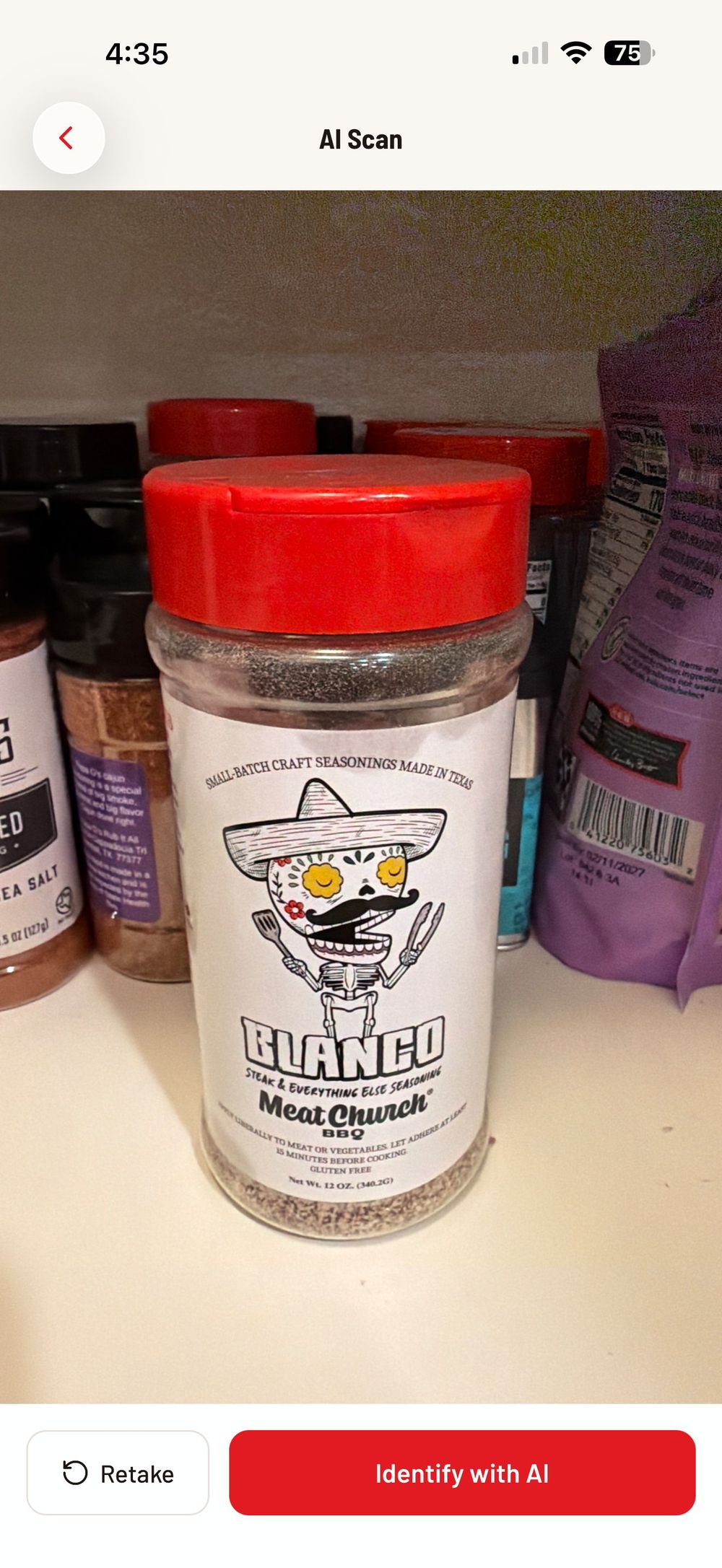
Once you have a clear shot, tap "Identify with AI." The app sends the photo to the AI which identifies the product name, brand, and category automatically. This usually takes just a few seconds.
The Confirm Screen
After the AI identifies your item (or after a barcode scan or manual entry), you will land on the confirm screen. This is where you review and finalize the details before adding it to your stache.
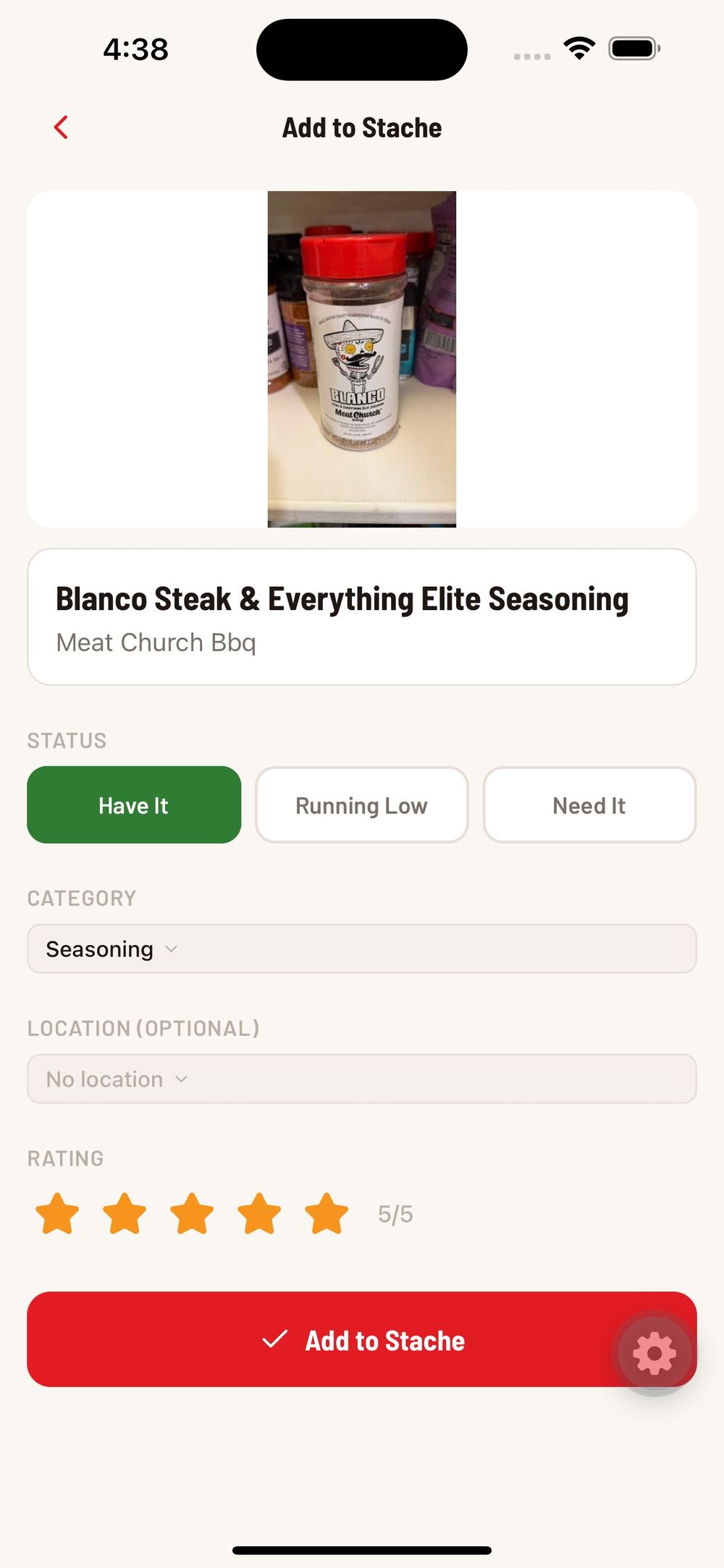
Here is what you can set:
Status — Mark it as "Have It" (in stock), "Running Low" (time to reorder soon), or "Need It" (out of stock and on your shopping list).
Category — The AI usually picks the right one, but you can change it using the dropdown. Options include rub, seasoning, sauce, marinade, meat, oil, and more.
Location — Optionally tag where you store it (kitchen, garage, outdoor kitchen) so you can filter your stache by location later.
Rating — Tap the stars to rate the product from 1 to 5. This helps you remember which products you love and which ones were just okay.
When everything looks right, tap the red "Add to Stache" button at the bottom and the item is saved to your inventory.
Barcode Scan
If a product has a UPC barcode, tap Barcode from the Add to Stache screen. Point your camera at the barcode and it will be recognized automatically. The app looks up the product in a database and fills in the name, brand, and category for you. You will land on the same confirm screen to review before saving.
Manual Entry
For items that do not have a barcode or when the AI does not recognize something, tap Manual. Type in the product name, pick a category, and set the status. This is also handy for adding items like wood chunks or custom spice blends that might not have standard packaging.
Tips for Better AI Scans
Get the full label in the frame — the AI reads the product name, brand, and any descriptive text on the label to make its identification.
Use good lighting — natural light or a well-lit kitchen works best. Avoid heavy shadows across the label.
One product at a time — the AI identifies a single product per photo, so keep the focus on one item.
If the AI gets the name slightly wrong, you can always edit it on the confirm screen before saving.
Was this helpful?
Still need help?
Email us at hello@cookstache.com