Managing Your Inventory
The Stache tab is where your entire BBQ inventory lives. Every item you have scanned, added manually, or imported shows up here, organized by category.
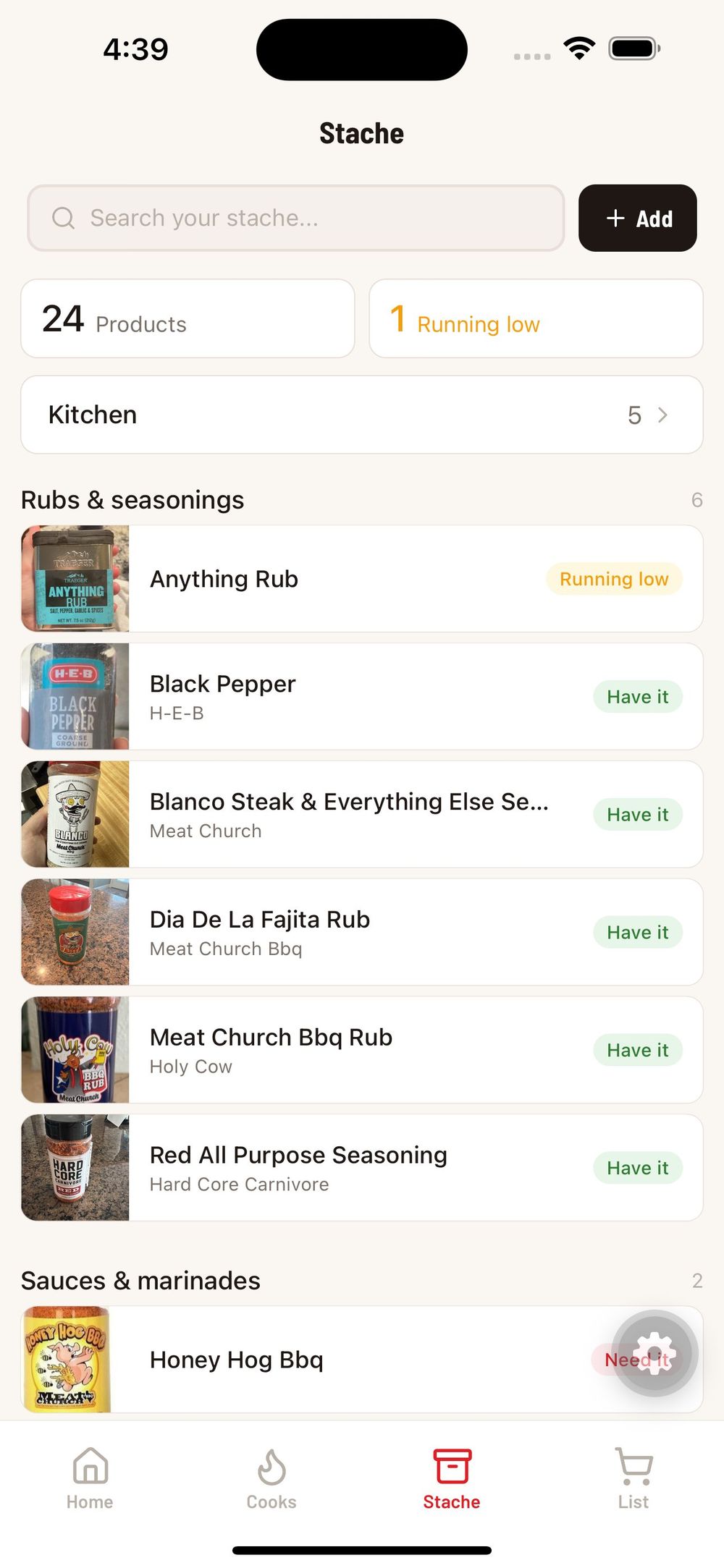
How the Stache Tab is Organized
At the top you will see a summary showing your total product count and how many are running low. Below that, your items are grouped by category — Rubs and Seasonings, Sauces and Marinades, Oils and Sprays, Meat, and so on. Each item shows its name, brand, and a color-coded status badge.
The status badges tell you at a glance what shape your inventory is in:
Have it (green) — You have this item in stock and ready to use.
Running low (orange) — You are getting low and should consider reordering.
Need it (red) — You are out of this item and need to buy more.
Use the search bar at the top to quickly find a specific item by name or brand.
Item Detail Screen
Tap any item in your stache to open its full detail screen.
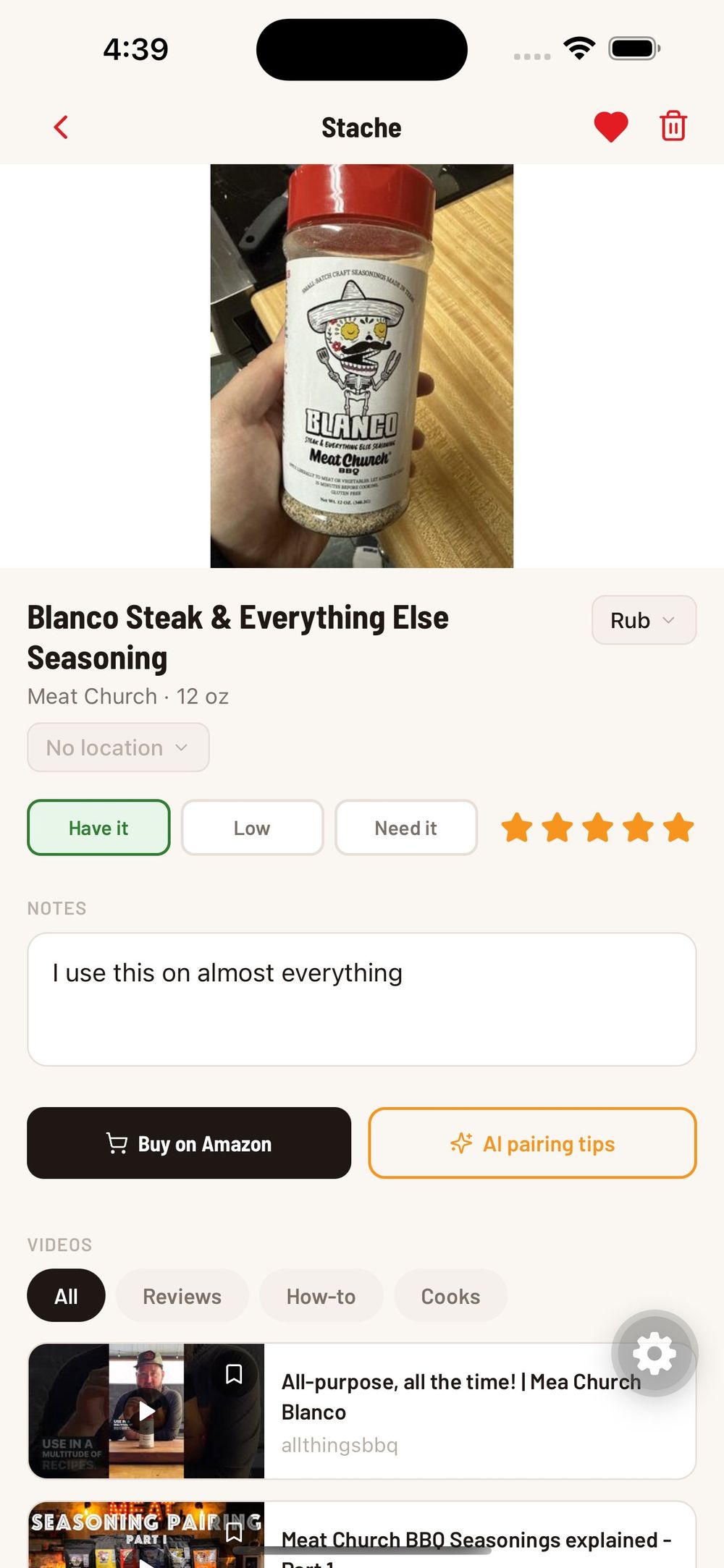
From here you can:
Change the status — Tap "Have it," "Low," or "Need it" to update the status. When you mark something as "Running Low," the item can appear in your Home dashboard alerts so you do not forget to restock.
Edit the category — Use the dropdown in the top right to change the category if it was misidentified.
Add notes — Write anything you want to remember about this product. How you like to use it, what it pairs well with, or where you bought it.
Rate it — Tap the stars to set your personal rating.
Buy on Amazon — Tap this button to search for the product on Amazon so you can reorder quickly.
AI pairing tips — Tap this to get AI-generated suggestions for what proteins, recipes, and other products pair well with this item.
Watch videos — At the bottom, related YouTube videos are pulled in automatically based on the product name. Filter them by All, Reviews, How-to, or Cooks to find the content you need.
Was this helpful?
Still need help?
Email us at hello@cookstache.com