Using the Shopping List
The List tab is your shopping list, designed to work hand-in-hand with your stache. Items land here from multiple places — when you mark something as "Need It" in your stache, when a recipe flags ingredients you are missing, or when you add items manually.
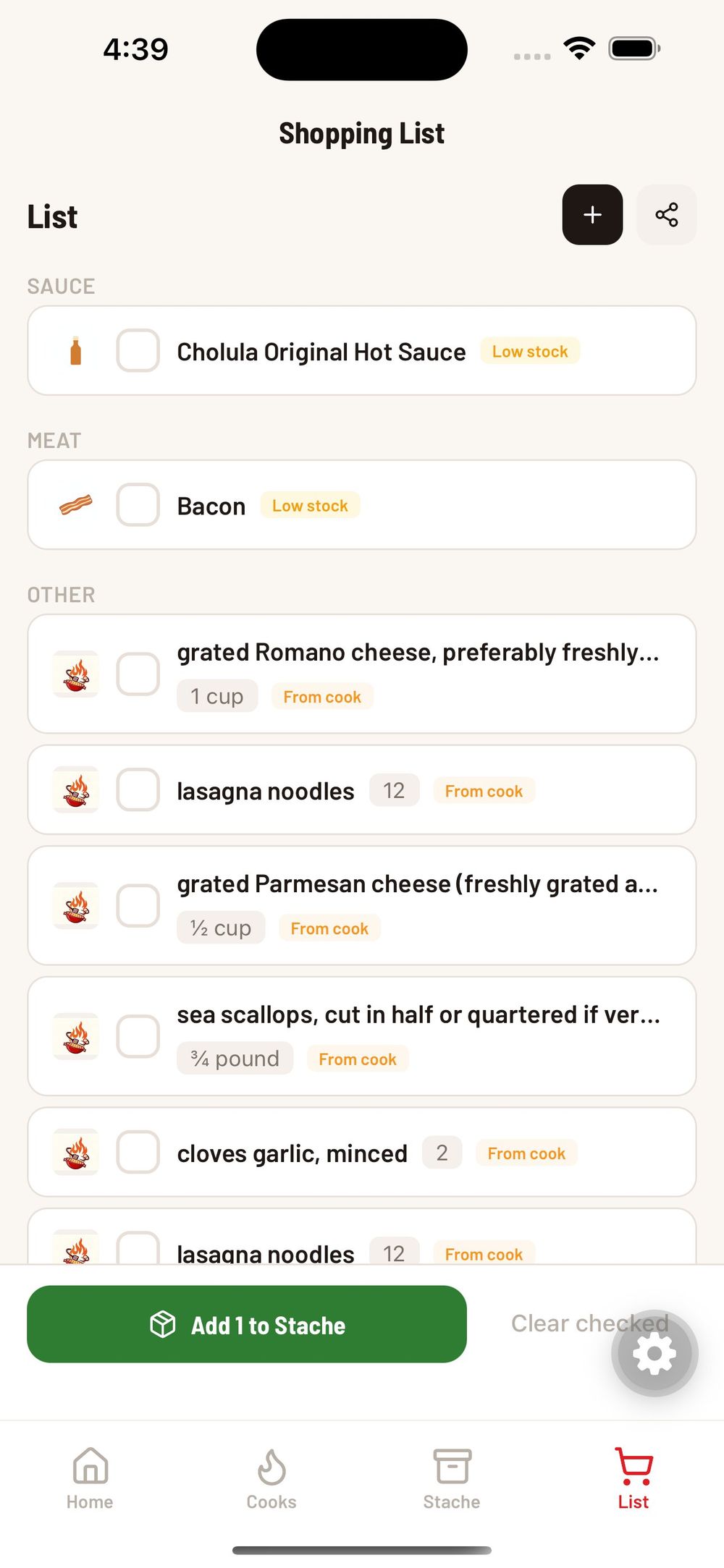
How the List is Organized
Items are sorted by category — Sauce, Meat, Other, and so on — so you can shop by section at the store instead of bouncing around. Each item shows its name, quantity if specified, and a source tag like "Low stock" or "From cook" so you know why it is on the list.
Checking Items Off
As you shop, tap the checkbox next to each item to mark it as found. Checked items stay visible so you can review what you have picked up.
Adding Items to Your Stache
This is where the magic happens. When you have checked off items, a red "Add to Stache" bar appears at the bottom of the screen. Tap it and every checked item gets moved into your stache with a "Have It" status — and removed from the shopping list. This saves you from having to manually update your inventory after every shopping trip.
You can also tap "Clear checked" to remove checked items from the list without adding them to your stache, in case you picked up items that do not need to be tracked.
Adding Items Manually
Tap the "+" button in the top right to add a new item to the list by hand. This is useful for non-BBQ grocery items or anything you want to track for your next shopping run.
Sharing Your List
Tap the share icon next to the "+" button to share your shopping list with someone else — handy if you are sending someone to the store for you.
Was this helpful?
Still need help?
Email us at hello@cookstache.com