Logging a Cook
Logging your cooks is how CookStache helps you improve over time. Every cook you record builds your personal history — tracking what proteins you have made, what rubs and sauces you used, what temperatures worked, and how you rated the results.
Starting a New Cook
Go to the Cooks tab and tap "+ Add" in the top right. A bottom sheet slides up with four options:
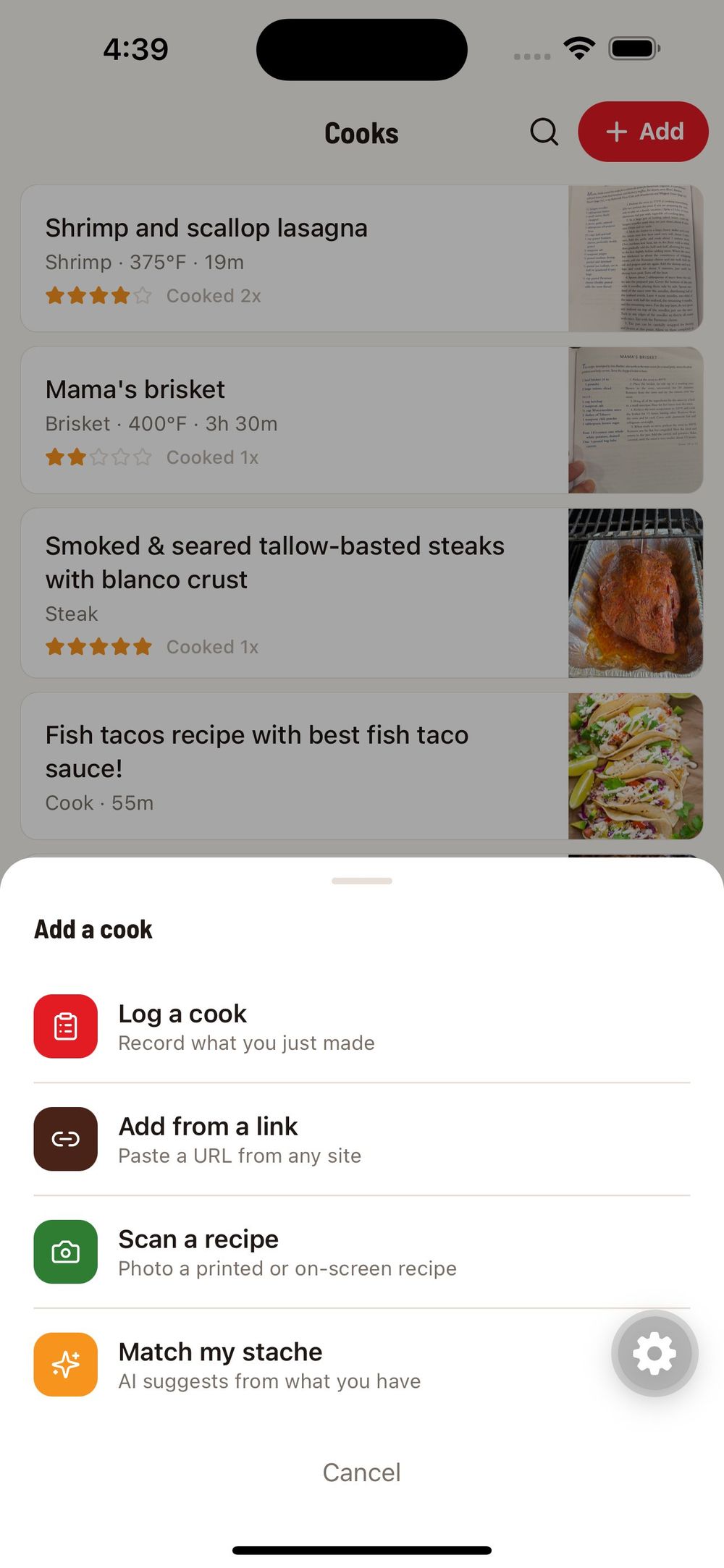
Log a cook — Record something you just made or are about to make. This walks you through the full cook logging flow.
Add from a link — Paste a URL from any recipe website. The AI extracts the recipe details, matches ingredients against your stache, and saves it as a cook you can track.
Scan a recipe — Take a photo of a printed recipe or one on your phone screen, and the AI converts it into a structured cook.
Match my stache — Let the AI look at what is in your stache right now and suggest cooks you can make with what you have on hand.
The Cook Logging Flow
When you tap "Log a cook," you walk through a guided flow step by step.
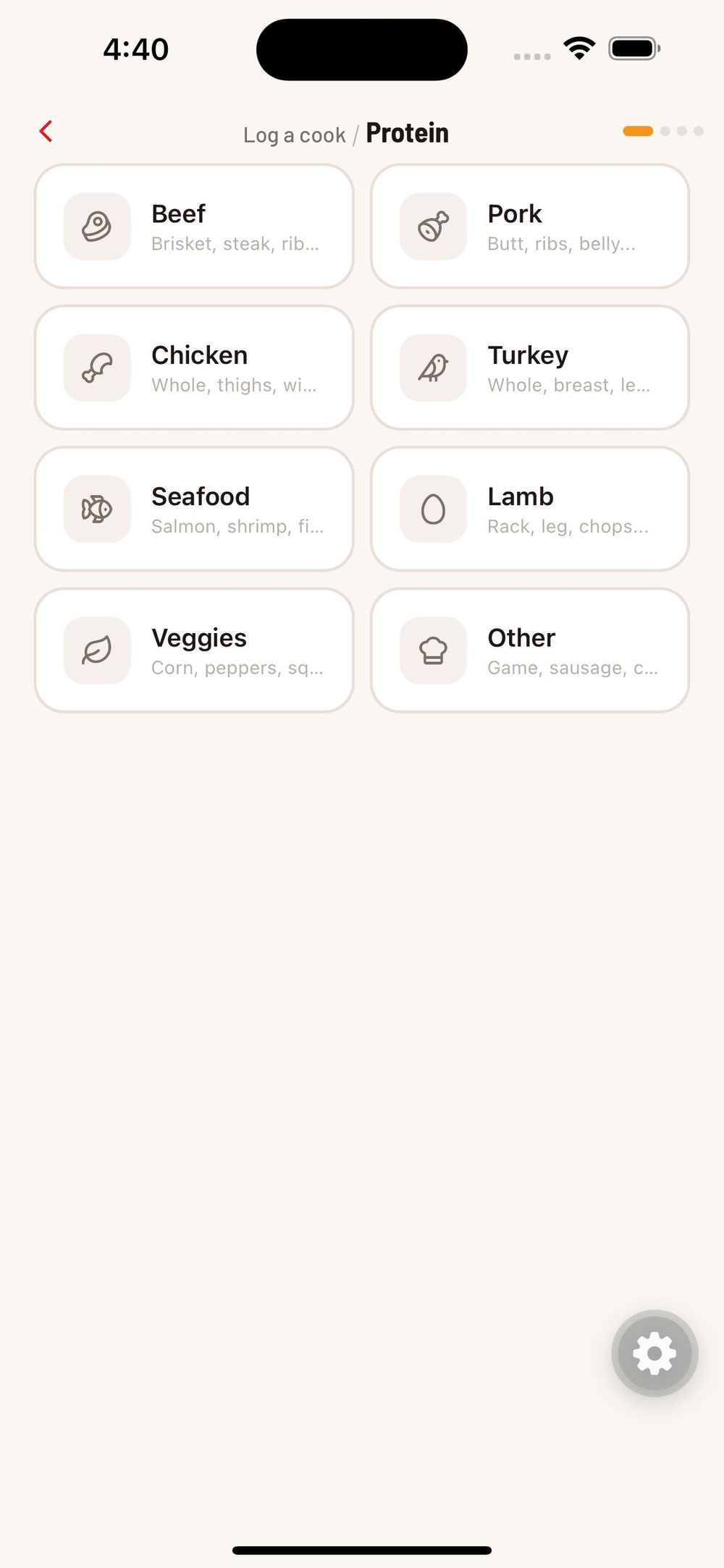
First, pick your protein. Choose from Beef, Pork, Chicken, Turkey, Seafood, Lamb, Veggies, or Other. Each category shows the common cuts and preparations underneath so you can pick the right one.
Next, select what you are using from your stache. This screen shows all your rubs, seasonings, sauces, oils, and meats organized by category. Tap the checkboxes next to everything you are using for this cook. The counter at the top tracks how many items you have selected.
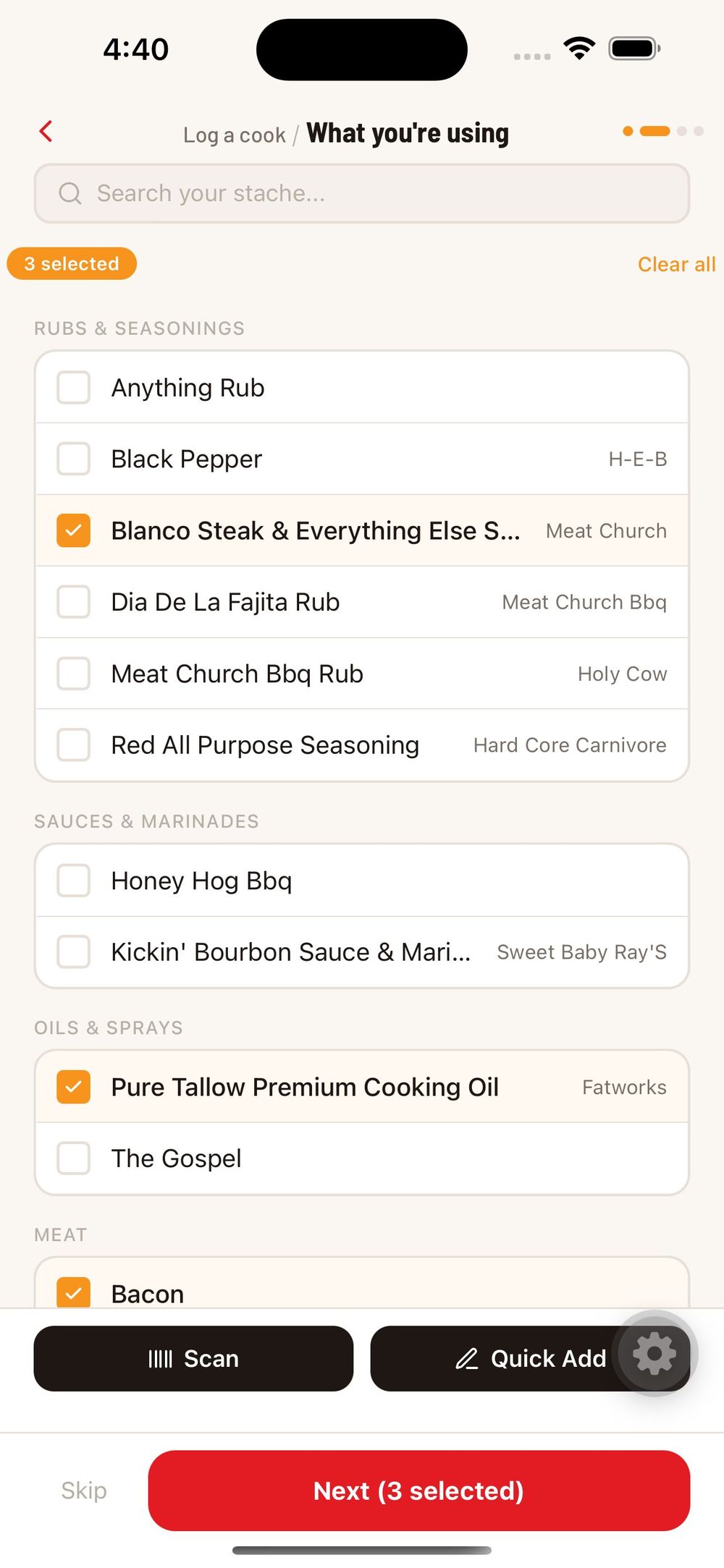
You can also scan a barcode or quick-add a new item right from this screen if you are using something that is not in your stache yet.
After selecting your ingredients, you will continue through additional steps to set your cook temperature, time, wood type, and other details depending on the protein you selected.
Your Cook History
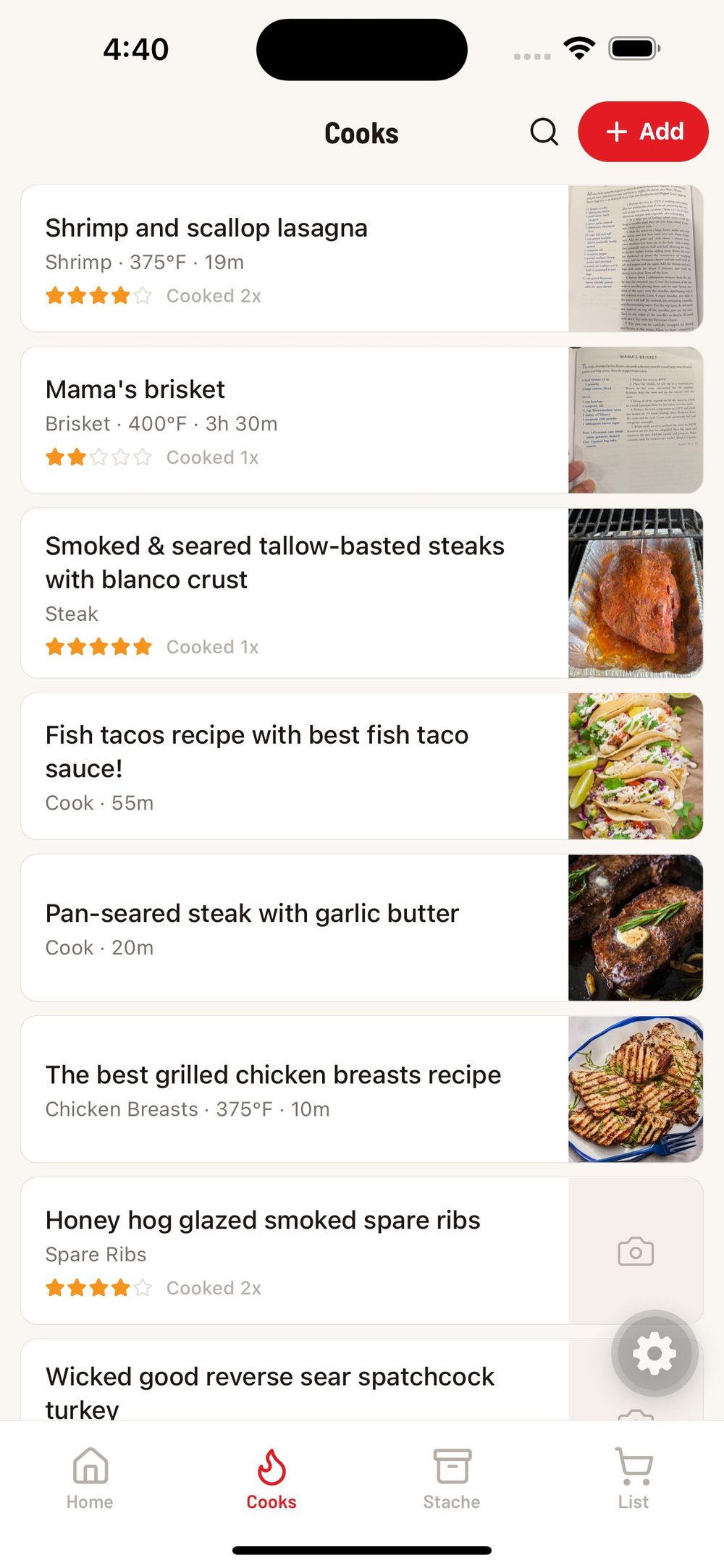
All your logged cooks appear in the Cooks tab as a scrollable list. Each card shows the cook name, protein, temperature, time, rating, and how many times you have cooked it.
Tap any cook to see its full detail page with the hero photo, all ingredients, step-by-step instructions, and cook history.
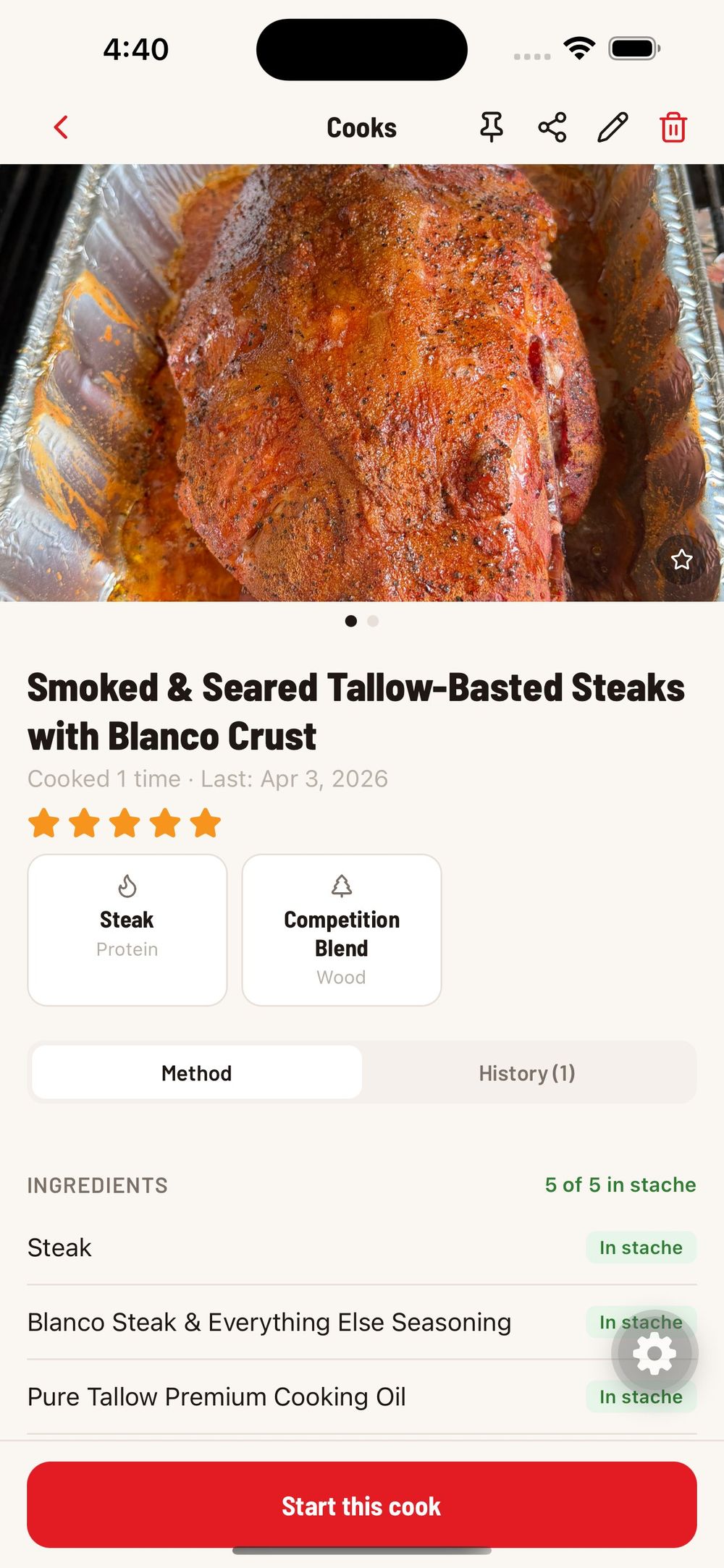
Notice the "In stache" badges next to ingredients — this tells you at a glance whether you have everything you need to make this cook again. The "Start this cook" button at the bottom kicks off a guided cook session.
Guided Cook Mode
When you start a cook, you get a step-by-step view with numbered instructions. Check off each step as you go to track your progress. The pull temperature is displayed at the top so you always know your target.
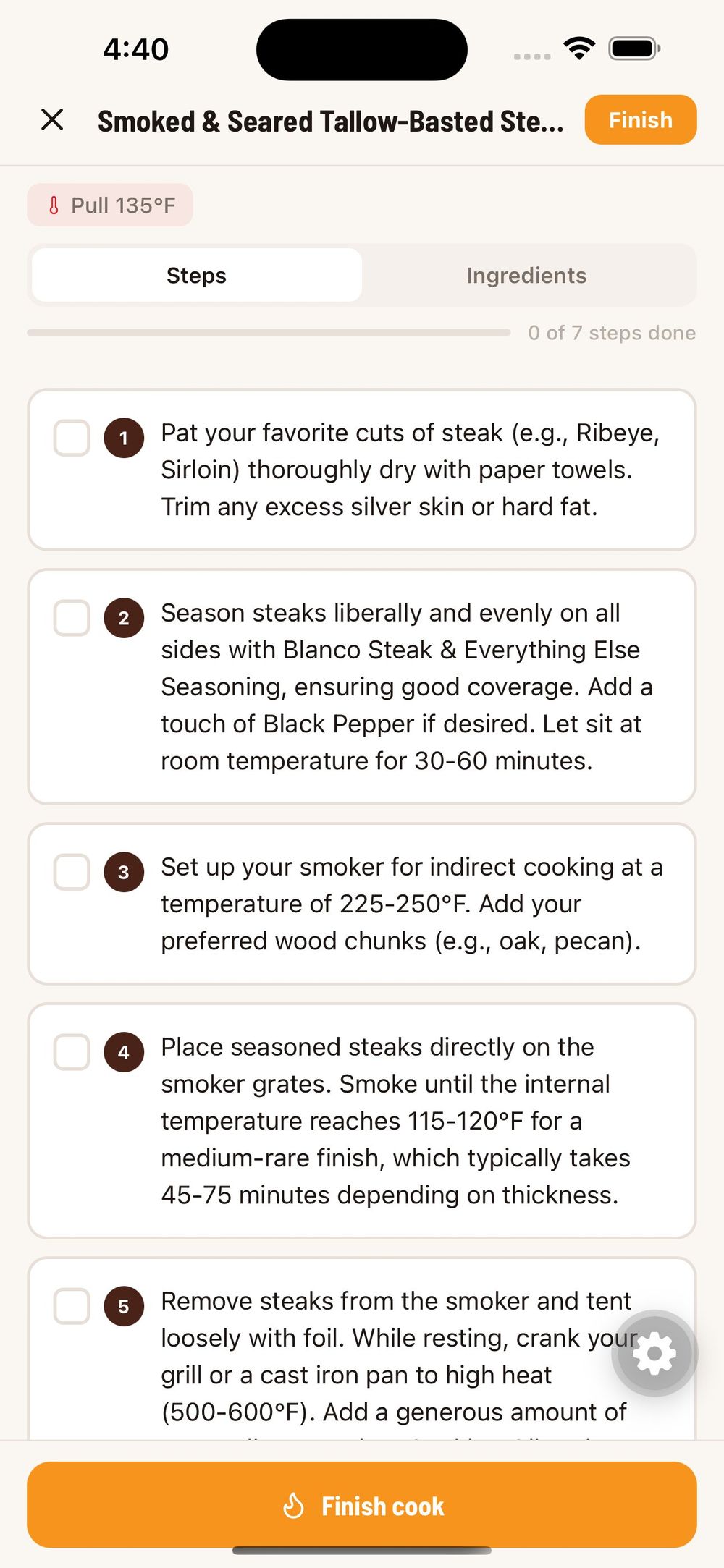
Tap "Finish cook" when you are done to save the cook to your history, rate it, and add any notes about what you would do differently next time.
Was this helpful?
Still need help?
Email us at hello@cookstache.com