Scanning a Printed Recipe
Got a recipe in a cookbook, on a recipe card, or printed out? Instead of typing it all in by hand, scan it with your camera and let the AI do the work. CookStache reads the text from the photo and converts it into a full structured cook with ingredients, steps, temperatures, and timing.
How to Scan a Recipe
Go to the Cooks tab, tap "+ Add," and select "Scan a recipe." You will see the Scan Recipe screen with three ways to get your recipe in:
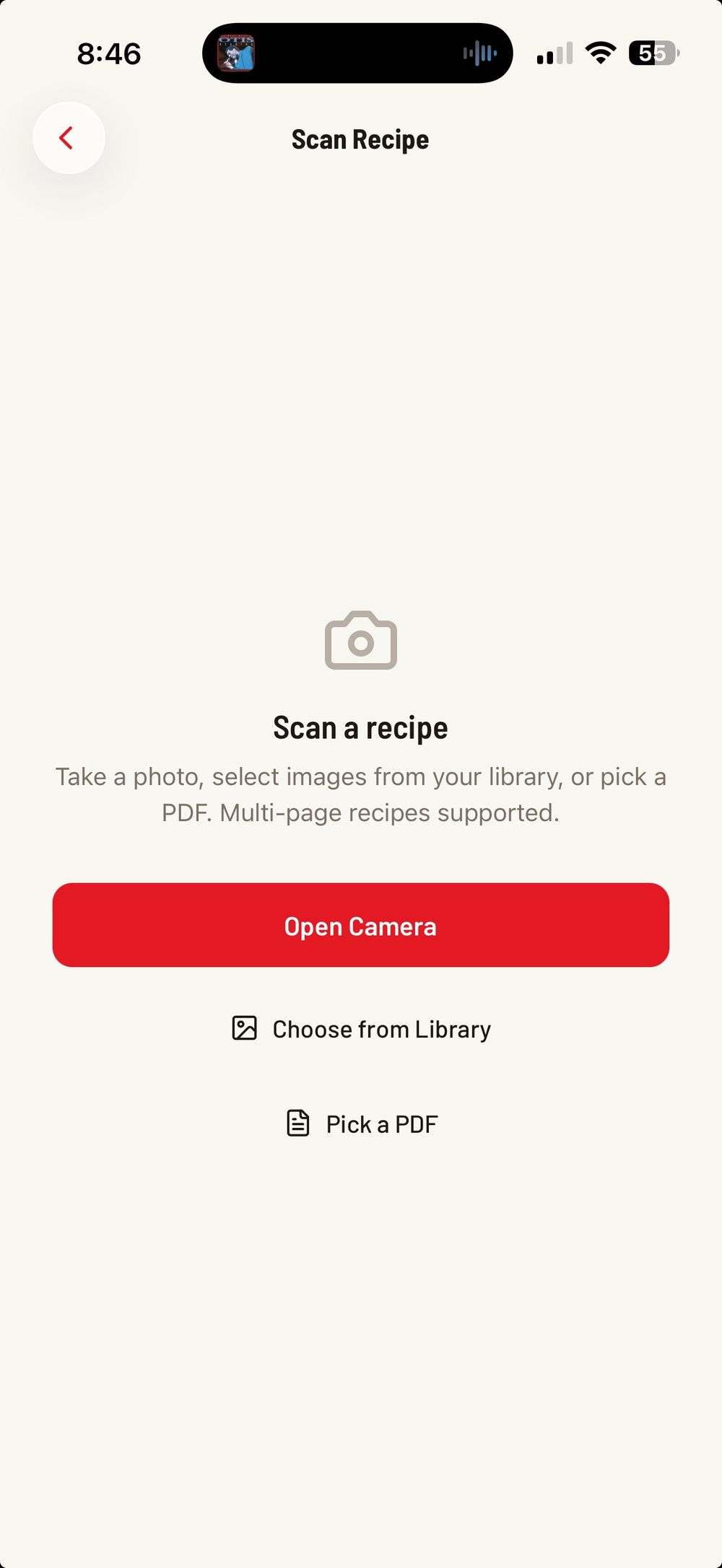
Open Camera — Take a photo of a printed recipe right now. Point your camera at the page and snap a picture.
Choose from Library — Select a photo you have already taken. This is handy if you took a picture of a recipe earlier or someone texted you a screenshot of one.
Pick a PDF — Select a PDF file from your device. Great for recipes you have saved as PDF documents or downloaded from websites.
Multi-Page Recipes
Some recipes span more than one page. CookStache handles this — after taking your first photo, you can add more pages before extracting.
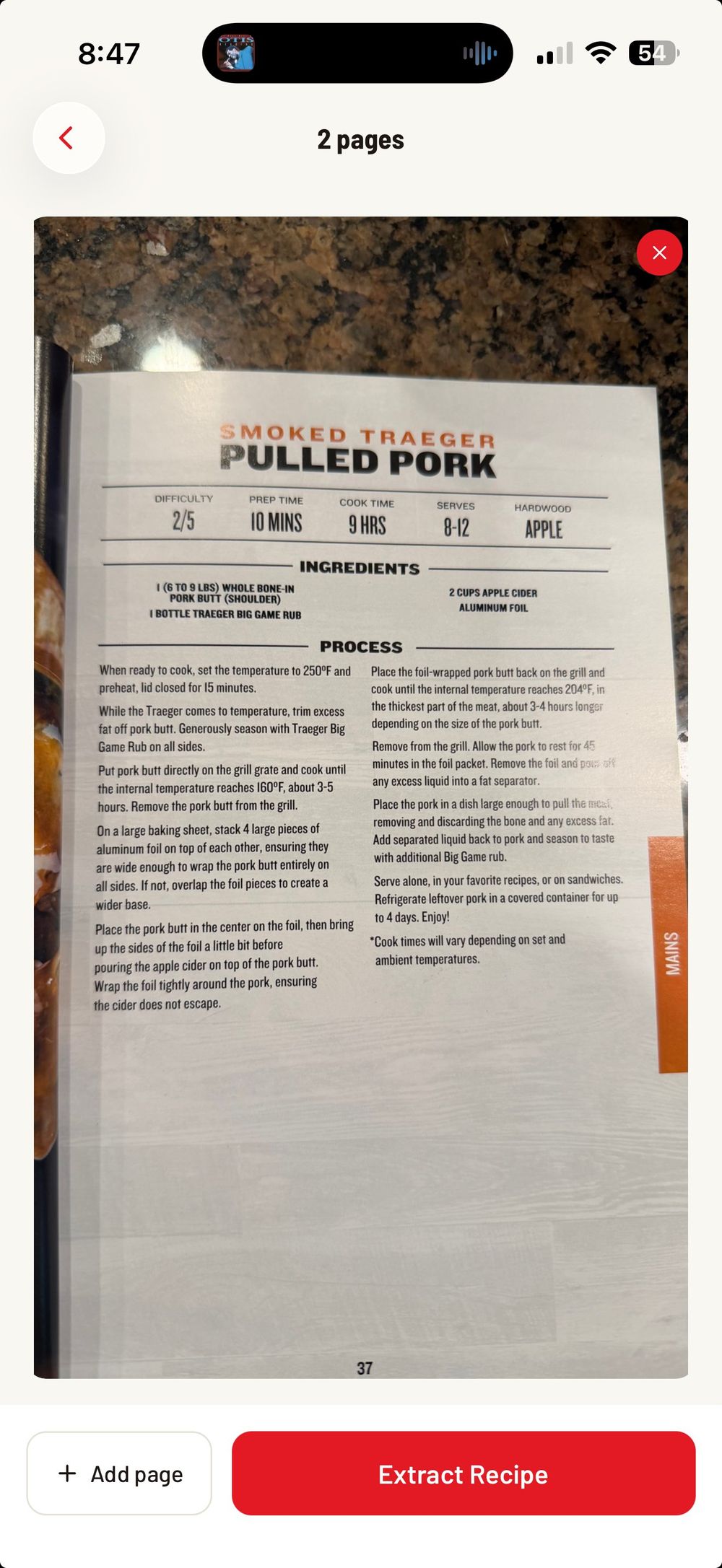
After capturing a page, you will see it displayed on screen with an "X" to remove it if needed. Tap "+ Add page" in the bottom left to capture additional pages. The page counter at the top shows how many pages you have added.
Once all pages are captured, tap the red "Extract Recipe" button. The AI reads all the text across every page and assembles a single structured recipe.
The Extracted Recipe
After a few seconds of processing, the AI creates a full cook from the scanned recipe. It extracts the recipe title, protein type, pit temperature, cook time, all ingredients with quantities, and step-by-step instructions.
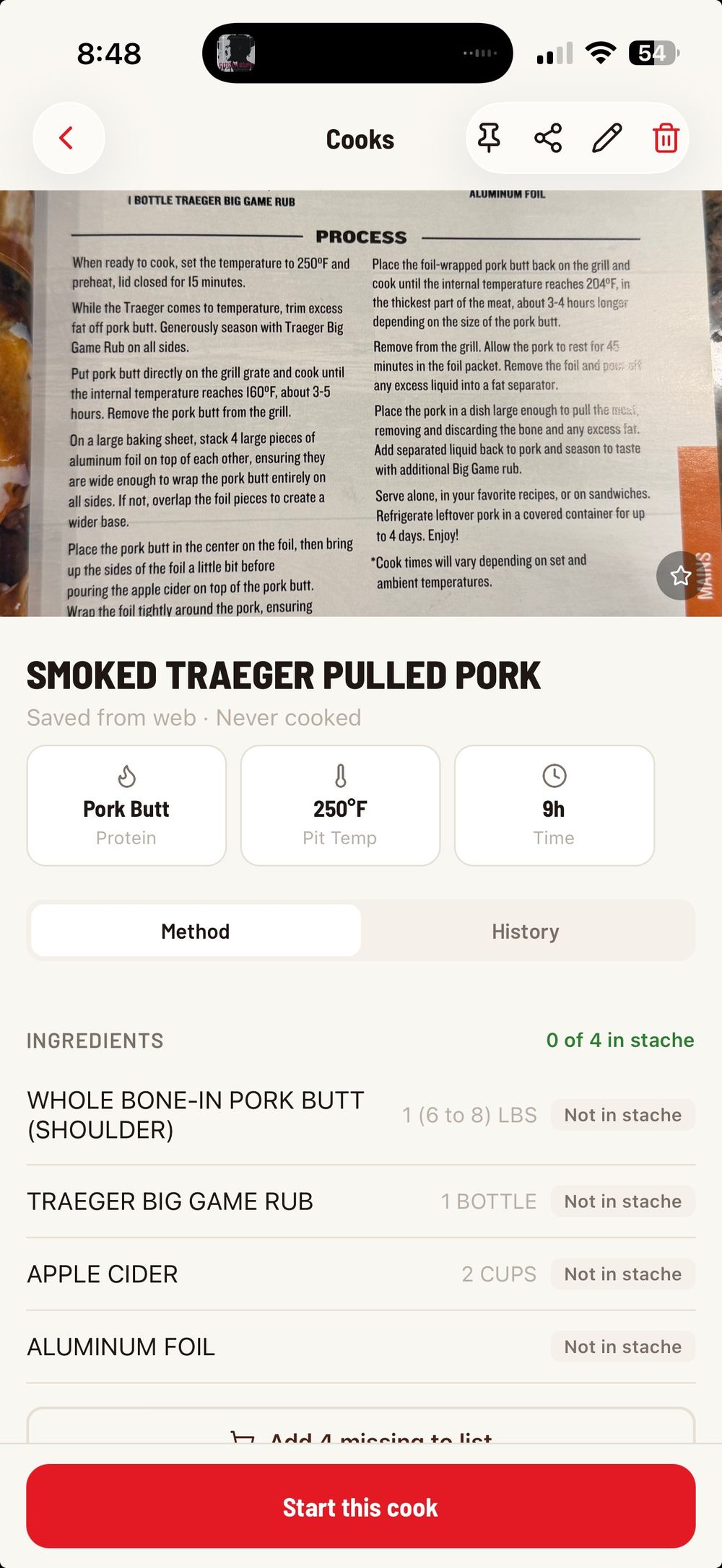
Just like with URL imports, the ingredients are matched against your stache. Each ingredient shows whether it is "In stache" or "Not in stache" so you can see what you need at a glance. Tap "Add missing to list" to send everything you need to your shopping list.
The original scanned image stays attached to the cook at the top of the screen, so you can always refer back to the source recipe.
Full Step-by-Step Instructions
Scroll down to see the complete cooking instructions, extracted from the scanned text and organized into numbered steps.
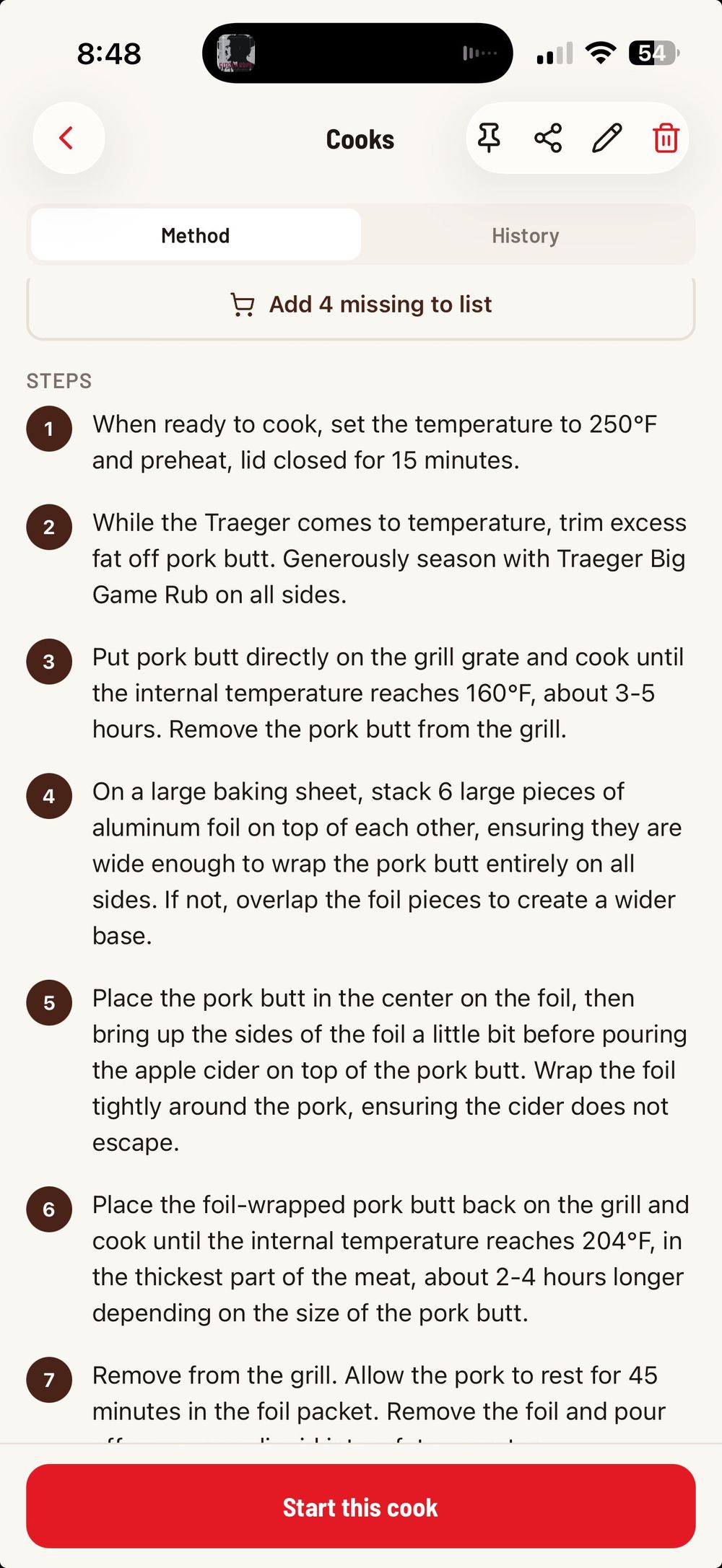
The AI converts even dense cookbook text into clean, readable steps. Tap "Start this cook" to begin a guided cook session where you can check off each step as you go.
Tips for Best Results
Lay the page flat and get the full recipe in the frame. Avoid shadows across the text and make sure the lighting is even.
For cookbooks, press the page open so the text near the spine is readable. The AI can handle some curve in the text but flat pages give the best results.
If a recipe spans two pages, use the multi-page feature rather than trying to fit both pages in one photo. Each page scanned individually will be clearer than a wide shot of two pages.
The AI works with any language and layout, but standard recipe formats with clear ingredient lists and numbered steps extract most cleanly.
If the AI misses something or gets a detail wrong, you can always edit the cook after it is saved — tap the pencil icon in the top right to update any field.
Was this helpful?
Still need help?
Email us at hello@cookstache.com